Filtering Jobs
You can use filter inference jobs by ai models, job type, username who created the job, and date range when the job was created. In addition, you can use an individual filter or combine two or more filters to find a specific inference job.
Filtering by AI Models
Filter and view jobs that used specific AI model or models for inference.
To filter jobs by AI models, do the following:
- In the Inference Jobs page, click the Filter icon.
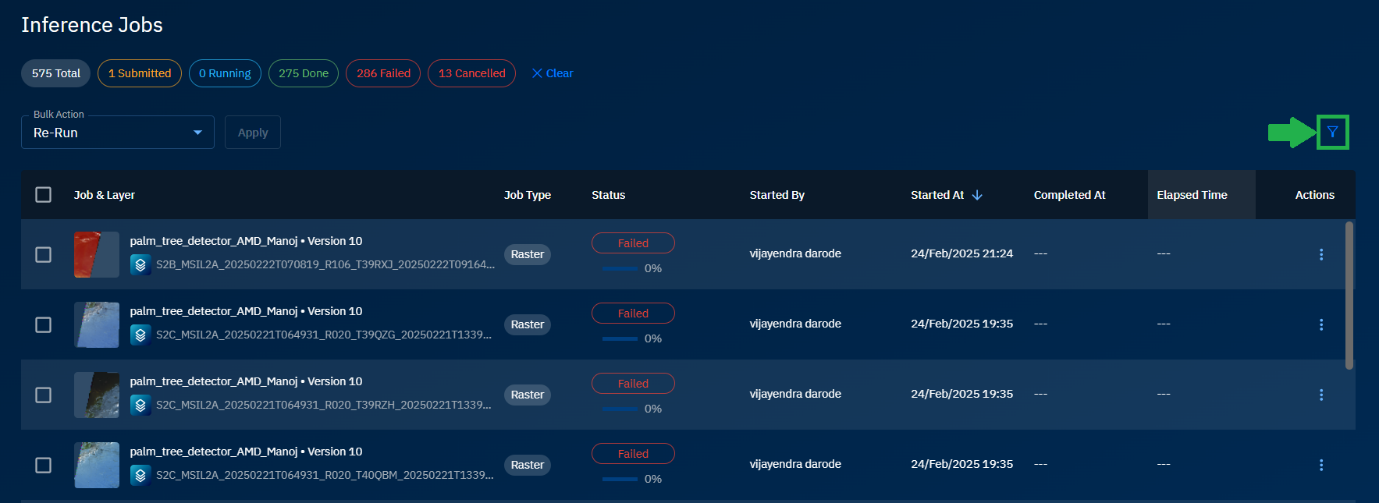
The Jobs Filter dialog box is displayed.
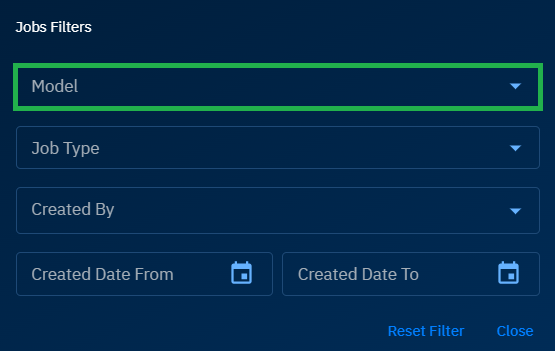
- On the Jobs Filter dialog, click the Model drop-down list, and then select one or more appropriate AI models.
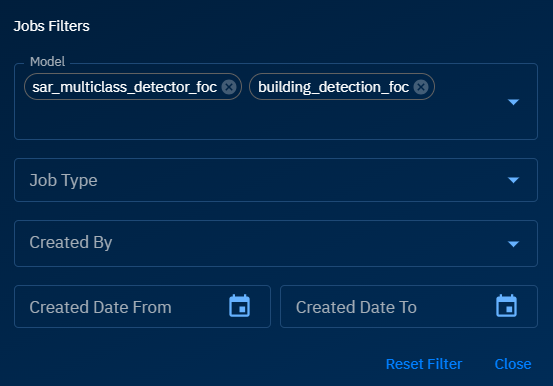
The platform displays all the inference job for the selected AI models.
Filtering by Job Type
Filter and view inference jobs by type of job (raster, image, and video).
To filter jobs by job type, do the following:
- In the Inference Jobs page, click the Filter icon.
The Jobs Filter dialog box is displayed.
- On the Jobs Filter dialog, click the Job Type drop-down list, and then select one or more job type.
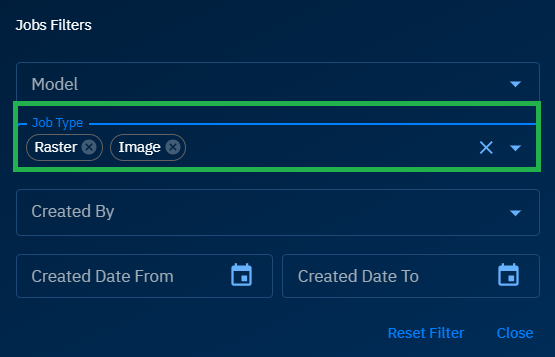
The platform displays all the inference job for the selected job types.
Filtering by Created By
Filter and view jobs created by usernames.
To filter jobs by AI models, do the following:
- In the Inference Jobs page, click the Filter icon.
The Jobs Filter dialog box is displayed.
- On the Jobs Filter dialog, click the Created By drop-down list, and then select one or more usernames to filter inference jobs created by these users.

The platform displays all the inference job created by these users.
Filtering by Date Range
Filter and view inference jobs run within a date range.
To filter jobs by AI models, do the following:
- In the Inference Jobs page, click the Filter icon.
The Jobs Filter dialog box is displayed.
- On the Jobs Filter dialog, select a date range.
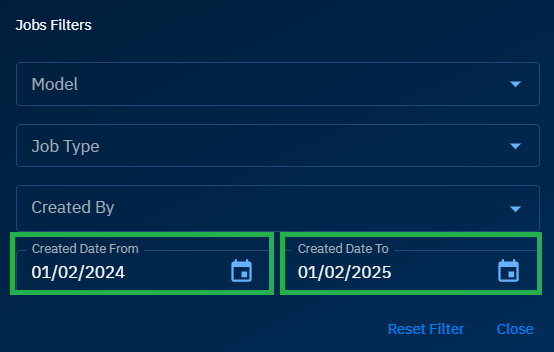
The platform displays all the inference job within the date range.